
Configuring News Articles in Employee Center
 Sandeep Dutta
Give your Employees aware of the latest news on any Company/ Organization News and keep them updated on what's going in the company using the Employee Center Portal.
How to get started ? How to Configure it? How to make it possible?
Well !! Simple answer, just follow the below steps:
This works starting Washington DC
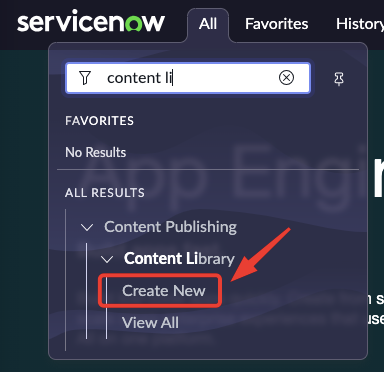
Navigate to


2. In the "Design" Section, fill all the following Details:

Note:
| Article publish start date and time | The date and time when the article becomes available for viewing on the portal.Note: The article becomes visible to specific users on a set date, based on the publish plan configurations. |
|---|---|
| Article publish end date and time | The date and time when the article is no longer available for viewing. |


Click "OK"
Now, What News you want to give to your Employees, to add the content, Click on " Open Editor"

In this Artcle, am going to use a Test Section, but you can use any components listed below:


Click on "Save and Finish", you can also click on "Save" to just save the content and you can comeback again to work on this pending content.
To check how will it look on the portal , click on " Preview"

Now, Am all set to Publish this News

Now, where, how ,when, to whom the news should be published??
to answer above, click on the respective fields and add the details:


Now you are Ready !!
Click on "Activate Generated plans" ( You can use either of the UI buttons)

You can see this message :

Which is equal to " Article Publish Start date and time"

Now Finally , see what's waiting on the Employee center

Open the news by clicking on the image icon:

https://www.servicenow.com/community/employee-center-articles/configuring-news-articles-in-employee-center/ta-p/2865814