
To design a custom menu like the above picture you need to have the zeal to learn new things…It’s…
 Aashish Atrey
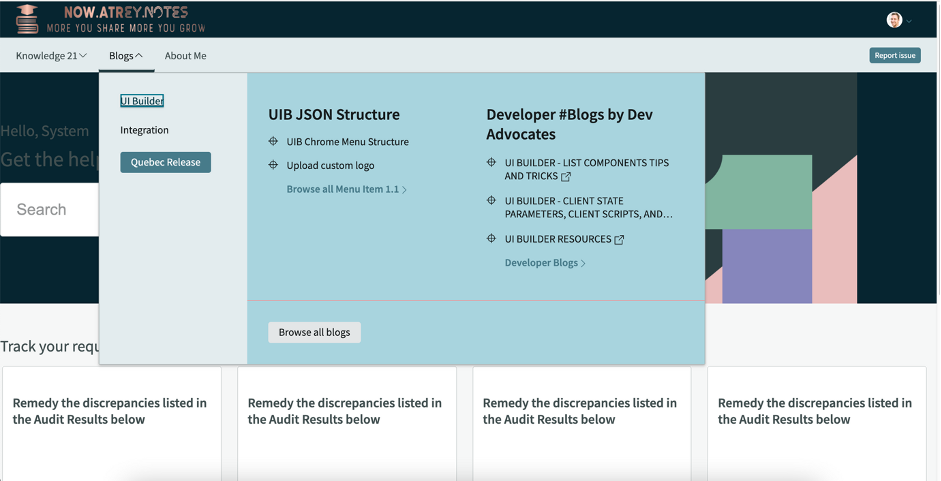
Today I’ve come up with How the menu in UIB can be configured using JSON properties. I’ve built a custom menu using chrome_menu JSON properties.
To design a custom menu like the above picture you need to have the zeal to learn new things…It’s not difficult to learn about chrome menu properties if you have got a good understanding of JSON schema.
Every other thing in UIB revolves around JSON but to reach there we must reach Navigation & menu settings in UIB and make the navigation menu to true and then open Advanced navigation menu settings.
Once you click Advanced navigation menu settings you’ll be redirected to the UX property page in platform view. Now you’ll be wondering What and How to be done. Select JSON in the type field and then write your JSON properties in the value field. Let’s move to the imperative part i.e. JSON properties in the value field.
Now you might be wondering what’s the above JSON all about and how menus can be created using JSON?… To learn about JSON, it’s better to break down it first and then learn.
Array.object has 3 items and each item holds 2 properties called value and children, these properties are responsible to design the menus.
- value → it holds property called label, this label again holds which are as follows:-
- translatable — It’s true/false type and it defines whether to translate the label as per language selection when it’s true means that label will get translated when you change the language.
- message — it specifies an actual value that to be shown as label in menu bar.Its string type property.
2. Now you’ve understood, the values of properties in the above image.
· message = Blogs
· translatable = true (depends upon you whether you want the label to be translated or not)
Now you know how to create a custom menu-bar option using JSON properties, let’s move to another part and learn How to create different options within Blogs menu and to do this we need to learn about the children property.
children property is the one which brings different items within menu-bar.It have 2 sub-properties:-
action property seems interesting as what I understand, that it’s specifically to define UI buttons in the menu which only redirect to pages within #UIB & not outside.
To be honest, there must be a way to do it, so that action can redirect to external sites via although this can be done via items before I move further, let’s break down the action property and see what are actual properties within it and How those can be leveraged.
label — defines the name for the action using this property as it has 2 properties within it.
- translatable — its boolean type defines whether to translate the label or not.
- message — its string type, holds the actual value for the label.
type — signifies where to direct on click of a button I’ve found 2 values for it route & external.
- rightIcon — using this property icon can be defined, but it does not work on action property(oob), keen to learn about more ServiceNow component icon
- value — this value property is different from initial value property, it’s specifically be used to define the value for route=article and fields property which holds the actual sysId as property of article on which it’ll get redirected on click of action.
· route = article
· fields:
· sysID = sys_id of knowledge article
"action": {"label": {"translatable": true,
"message": "Quebec Release"
},"type": "route","rightIcon": "chevron-right-outline","value": {"route": "article","fields": {"sysId": "8aef1935474321009db4b5b08b9a7113"}},
}
Glad that you’ve learnt the basics of chrome_menu JSON, but the learning is still not over, so far, we learnt about the creation of a custom menu bar, action(button).
Now, let’s move to most interesting & final part of chrome_menu JSON i.e. items property. Once you’ll learn about the items property then you can design your own customized chrome_menu.
items property is an array. object([{…}], below schema, reminds you of something similar that we learnt as basics of chrome_menu schema earlier in the blog.
items property have 2 items within it, which are value property and children property. To provide more items in menu_bar, then we need to nest the children property with similar schema. There are other additional properties which we’ll discuss down the line.
{"value": {"label": {"translatable": true,"message": "UI Builder"}},"children": {"action": {
"label": {"translatable": true,"message": "Browse all blogs"},
"type": "route","rightIcon": "chevron-right-fill","value": {"route": "article","fields": {"sysId": "8aef1935474321009db4b5b08b9a7113"}}},"items": [{"value": {"label": {"translatable": true,"message": "UIB JSON Structure"}},"children": {"action": {"label": {"translatable": true,
"message": "Browse all Menu Item 1.1"
},"type": "route","rightIcon": "chevron-right-fill","value": {"route": "article","fields": {"sysId": "8aef1935474321009db4b5b08b9a7113"}}},"items": [{"value": {"label": {"translatable": true,"message": "UIB Chrome Menu Structure"},"leftIcon": "target-outline","type": "route","value": {"route": "article","fields": {
"sysId": "8aef1935474321009db4b5b08b9a7113"}}}},{"value": {"label": {"translatable": true,"message": "Upload custom logo"},"type": "route","leftIcon": "target-fill","value": {"route": "article","fields": {"sysId": "8aef1935474321009db4b5b08b9a7113"}
}
}
}
]
}
},{"value": {"label": {"translatable": true,"message": "Developer #Blogs by Dev Advocates"
}
},"children": {"action": {"label": {"translatable": true,"message": "Developer Blogs"},"type": "external","rightIcon": "chevron-right-fill","value": {"href": "www.developer.service-now.com"}},"items": [{"value": {"label": {"translatable": true,"message": "UI BUILDER - LIST COMPONENTS TIPS AND TRICKS"},"type": "external","rightIcon": "open-link-fill","leftIcon": "target-fill","value": {"href": "developer.servicenow.com/blog.do?p=/post/quebec-ui-builder-lists/"}}},{"value": {"label": {"translatable": true,"message": "UI BUILDER - CLIENT STATE PARAMETERS, CLIENT SCRIPTS, AND EVENTS"},"type": "external","rightIcon": "open-link-fill","leftIcon": "target-fill","value": {"href": "developer.servicenow.com/blog.do?p=/post/quebec-ui-builder-client-state-scripts-events/"}}},{"value": {"label": {"translatable": true,"message": "UI BUILDER RESOURCES"},"type": "external","leftIcon": "target-fill","rightIcon": "open-link-fill","value": {"href": "developer.servicenow.com/blog.do?p=/post/quebec-ui-builder-resources/"}}
}]}
}]}}
- items property have 2 sub-properties, as seen JSON above 1st is value here define the label for the option then define 2nd property that is children. Children property again holds nested json which define the different value for value property and for children properties.
- UI Builder on left pane is the 1 child, this child follows the json schema value property which defines the label as UI Builder.
- UIB JSON Structure and Developer Blogs by Advocates on right pane are the children of UI Builder.
- UIB Chrome menu structure and Upload custom logo are the children of UIB JSON structure
- UIB-Builder List component is the child of Developer Blogs by advocate
This is all about chrome_menu JSON properties, I know, it’ll be hard to remember JSON schema but if you’ll learn its basics then you’ll be in a win-win situation.
I hope ServiceNow will enhance and improve the way to design chrome_menu as it’ll be a big pain to design without proper documentation on JSON properties of, chrome_header, chrome_menu etc.
I hope this will help you understand the basics behind the chrome_menu JSON properties.
https://medium.com/@aashishatrey/to-design-a-custom-menu-like-the-above-picture-you-need-to-have-the-zeal-to-learn-new-things-its-9578037fc72c